
DATASHEET SEARCH SITE
Document overview
- Manufacturer or author: Provided By www.digicamel.com(FREE DATASHEET DOWNLOAD SITE)
- PDF pages: 26
Technical content
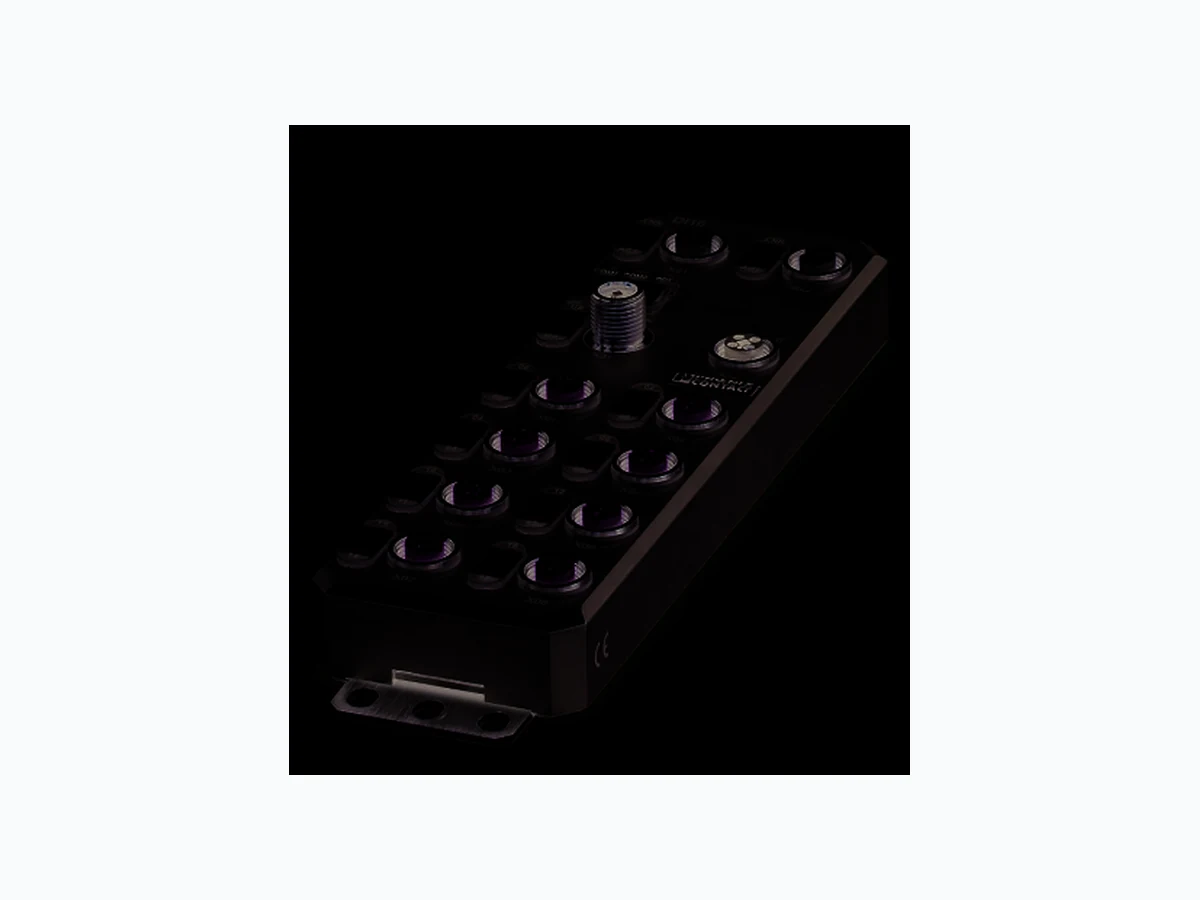
Axioline E EtherNet/IP™ device, metal housing, 16 inputs, 24 V DC, M12 fast connection technology AXL E EIP DI16 M12 6M © PHOENIX CONTACT Data sheet The Axioline E device is designed for use within an EtherNet/IP™ network. It is used to acquire digital signals. The device is designed for use in systems manufacturing. It is suitable for use without a control cabinet under harsh in- dustrial conditions. The Axioline E device can be used on tool platforms, directly on welding robots or in conveying technology, for example. EtherNet/IP™ features – 2 Ethernet ports (wit h integrated switch) – Minimum cycle time of 1 ms (RPI) – Supported protocols: ACD, DLR, IGMP v2 SNMP v1, HTTP, TFTP, FTP, BootP, DHCP – Specification: CIP Edition 3.11; EIP adaptation of CIP 1.12 – Device description using EDS file –F i r m w a r e c a n b e u p d a t e d – Integrated web server for web-based management Axioline E features – Connection to EtherNet/IP™ network using M12 connectors (D-coded) – Transmission speed of 10 Mbps and 100 Mbps – Connection of digital sensors to M12 connectors (A-coded) – Diagnostic and status indicators – Short-circuit and overload protection of the sensor supply – IP65/67 degree of protection This data sheet is only valid in association with the associated user manual. Make sure you always use the latest documentation. It can be downloaded from the product at phoenixcontact.net/products. 8421_en_01 2015-09-24
8421_en_02 PHOENIX CONTACT 2 2T a b l e o f c o n t e n t s
8421_en_02 PHOENIX CONTACT 3 Description Type Order No. Pcs. / Pkt. Axioline E EtherNet/IP™ device in a metal housing with 16 digital inputs,
24 V DC, M12 fast connection technology
AXL E EIP DI16 M12 6M 2701488 1 Accessories Type Order No. Pcs./Pkt. An M12 screw plug for the unoccupied M12 sockets of the sensor/actuator cable, boxes and flush-type connectors (Protection and sealing elements) PROT-M12 1680539 5 Mounting plate for Axioline E metal devices (Assembly) AXL E MP 60 2701761 1 Snap-in markers, Sheet, white, unlabeled, can be labeled with: THERMOMARK CARD, BLUEMARK CLED, BLUEMARK LED, TOPMARK LASER, Mounting type: snapped into marker carrier, Lettering field: 7 x 10 mm (Marking) UCT-EM (7X10) 0830765 10 Documentation Type Order No. Pcs. / Pkt. User manual, English, Axioline E: system and installation UM EN AXL E SYS INST - - Application note, English: Updating the firmware of AXL E devices using the Windows Explorer AH EN FIRMWARE UPDATE AXL E - - Additional ordering data For additional accessories, visit phoenixcontact.net/products. 3O r d e r i n g d a t a
8421_en_02 PHOENIX CONTACT 4 Dimensions (nominal sizes in mm) Width 60 mm Height 185 mm Depth 38 mm Note on dimensions The height is 194.5 mm including th e mounting plate. With fixing clips pulled out, the height is 212 mm. The depth is 38 mm including the mounting plate (30.5 mm without the mounting plate). General data Housing material Zinc die-cast Weight 750 g Ambient temperature (operation) -25 °C ... 60 °C CAUTION: Risk of burns If the device is used at an ambient temperature above 50°C, the contact temperature of metal surfaces may exceed 70°C. Ambient temperature (storage/transport) -25 °C ... 85 °C Permissible humidity (operation) 5 % ... 95 % Permissible humidity (storage/transport) 5 % ... 95 % Air pressure (operation) 80 kPa ... 108 kPa (up to 3000 m above sea level) Air pressure (storage/transport) 70 kPa ... 106 kPa (up to 3000 m above sea level) Degree of protection IP65/67 Protection class III, IEC 61140, EN 61140, VDE 0140-1 Connection data Connection method M12 connector Interface EtherNet/IP™ Number 2 Connection method M12 connectors, D-coded Designation connection point Copper cable Number of positions 4 Transmission speed 10/100 MBit/s (with auto negotiation) Cycle Time min. 1 ms (RPI)
4 Technical data
194,5 185
8421_en_02 PHOENIX CONTACT 5 EtherNet/IP™ Equipment type EtherNet/IP™ slave EtherNet/IP™ protocols ACD, DLR, IGMP v2 Additional protocols SNMP v1, HTTP, TFTP, FTP, BootP, DHCP Specification CIP Edition 3.11 EIP adaptation of CIP 1.12 Supply: Module electronics and sensors (US) Connection method M12 connector (T-coded) Number of positions 4 Supply voltage 24 V DC Nominal supply voltage range 18 V DC ... 31.2 V DC (including all tolerances, including ripple) Typical current consumption 1 90 mA ±15 % (at 24 V DC) Current consumption max. 12 A Supply: Actuators (UA) for additional devices Connection method M12 connector (T-coded) Number of positions 4 Supply voltage 24 V DC Nominal supply voltage range 18 V DC ... 31.2 V DC (including all tolerances, including ripple) Typical current consumption 3 mA ±15 % (at 24 V DC) Current consumption max. 12 A Digital inputs Number of inputs 16 (EN 61131-2 types 1 and 3) Connection method M12 connector, double occupancy Connection method 2, 3, 4-wire Nominal input voltage 24 V DC Nominal input current typ. 3 mA Sensor current per channel typ. 0.75 mA (from US) Total sensor current max. 1.2 A (per device) Input voltage range "0" signal -30 V DC ... 5 V DC Input voltage range "1" signal 11 V DC ... 30 V DC Input filter time < 1000 µs Permissible conductor length to the sensor 30 m Overload protection, short-circuit protection of sensor supply Yes
8421_en_02 PHOENIX CONTACT 6 Electrical isolation/isolation of the voltage areas Test section Test voltage
24 V supply (communications power and sensor supply, digital inputs)/
bus connection (Ethernet 1)
500 V AC, 50 Hz, 1 min
bus connection (Ethernet 2)
24 V supply (communications power and sensor supply, digital inputs)/FE 500 V AC, 50 Hz, 1 min
Bus connection (Ethernet 1)/FE 500 V AC, 50 Hz, 1 min Bus connection (Ethernet 2)/FE 500 V AC, 50 Hz, 1 min Bus connection (Ethernet 1)/bus connection (Ethernet 2) 500 V AC, 50 Hz, 1 min
24 V supply (actuator supply)/
24 V supply (communications power and sensor supply, digital inputs)
24 V supply (actuator supply)/bus connection (Ethernet 1) 500 V AC, 50 Hz, 1 min
24 V supply (actuator supply)/bus connection (Ethernet 2) 500 V AC, 50 Hz, 1 min
24 V supply (actuator supply)/FE 500 V AC, 50 Hz, 1 min
Vibration resistance in acc. with EN 60068-2-6/IEC 60068-2-6 5 g Shock in acc. with EN 60068-2-27/IEC 60068-2-27 30 g, 11 ms period, half-sine shock pulse Continuous shock according to EN 60068-2-27/IEC 60068-2-27 10 g Conformance with EMC Directive 2004/108/EC Noise immunity test in accordance with EN 61000-6-2 Electrostatic discharge (ESD) EN 61000-4-2/IEC 61000-4-2 Criterion B; 6 kV contact discharge, 8 kV air discharge Electromagnetic fields EN 61000-4-3/IEC 61000-4-3 Criterion A; Field intensity: 10 V/m Fast transients (burst) EN 61000-4-4/IEC 61000-4-4 Criterion B, 2 kV Transient surge voltage (surge) EN 61000-4-5/IEC 61000-4-5 Criterion B; DC supply lines: ±0.5 kV/±0.5 kV (symmetrical/asymmetrical) Conducted interference EN 61000-4-6/IEC 61000-4-6 Criterion A; Test voltage 10 V Noise emission test as per EN 61000-6-4 Radio interference properties EN 55022 Class A Approvals For the latest approvals, please visit phoenixcontact.net/products.
8421_en_02 PHOENIX CONTACT 7
5 Internal circuit diagram
Figure 1 Internal wiring of connections Key: Key: Green area: Network Blue area: U S Yellow area: U A X31 X32 X01 X02 X03 X04 X05 X06 X07 X08 2 2 2 2 24 V 3.3 V µC U OUTS U OUTA UI NS UI NA X21 X22 ETH1 ETH2 Transmitter with electrical isolation Power supply unit with electrical isolation Microcontroller Digital input LED µC
8421_en_02 PHOENIX CONTACT 8
6 Pin assignment
6.1 EtherNet/IP™ and power supply connection
Figure 2 Connections for EtherNet/IP™ and voltage supply
6.2 EtherNet/IP™ pin assignment
Figure 3 Ethernet pin assignment, D-coded
6.3 Pin assignment of the power supply U S/UA
Figure 4 Pin assignment of the power supply, T-coded Designation Meaning Port 1 (X21) Ethernet port 1 Port 2 (X22) Ethernet port 2 U S IN (X31) Power supply IN (logic and sensors) UA IN (X31) Power Supply IN (actuators) for addi- tional devices US OUT (X32) Power supply OUT for additional de- vices UA OUT (X32) Power supply OUT for additional de- vices Ground the device by means of the mounting screws. Port 1 Port 2 Pin Ethernet port 1 (X21) Ethernet port 2 (X22) 1T X + T X + 2R X + R X + 3T X - T X - 4R X - R X - The shield is connected to FE in the device. The thread is used for additional shielding.Pin IN OUT Conductor colors 1+ 2 4 V D C ( U S) +24 V DC (U S)B r o w n 2G N D ( U A)G N D ( U A)W h i t e 3G N D ( U S)G N D ( U S)B l u e 4+ 2 4 V D C ( U A) +24 V DC (U A)B l a c k 1 2 X21 2 3 X22 X32X31 1 4 3 2
8421_en_02 PHOENIX CONTACT 9
6.4 Input connection
Figure 5 Input connections
6.5 Pin assignment of the inputs
Figure 6 Pin assignment of the inputs, A-coded Designation Meaning Pin Input socket 1 +24 V DC (U S) 3G N D 5F E X01, X03, X05, X07 X02, X04, X06, X08 2 3
8421_en_02 PHOENIX CONTACT 10
7 Connection example
Figure 7 Typical connection of sensors
8 Connection notes
+24 V IN 5 IN 12 +24 V IN 11 Note: data corruption or loss Implement the FE connection using mounting screws, in order to ensure immunity to inter- ference. NOTE: device damage To ensure IP65/IP67 protection, cover unused sockets with protective caps. NOTE: Damage to the electronics Only supply the sensors with the voltage U S provided at the terminal points. NOTE: Damage to the electronics Observe the correct polarity of the supply volt- ages US and UA in order to prevent damage to the device. NOTE: Malfunction When connecting the sensors, observe the assignment of the connections to the EtherNet/IP™ input data. Secure the device to a level surface or to a profile. Do not use this device to bridge gaps, in order to prevent forces being transmitted via the device. Use standard M5 screws with toothed lock washer and self-locking nuts. Observe the maximum torque of the screws.
8421_en_02 PHOENIX CONTACT 11
9 Configuration via rotary encoding switch
You can configure the address assignment and other func- tions using rotary encoding switches. After modifying the switch position, restart the device, as the modification to the switch position does not take effect dur- ing operation. Figure 8 Rotary encoding switch The code results from the sum of S1 x 10 plus S2 x 1. The image shows code 77 (7 x 10 + 7).
9.1 Remote access
At this switch position, it is possible to remotely configure the device using corresponding tools (e.g., Startup+, web- based management (WBM)). Behavior during initial startup, after resetting the IP parameters or after resetting to default settings A valid IP address is not assigned (0.0.0.0) and communica- tion is therefore not possible. The device transmits continuous BootP requests (2 s, 4 s, 8 s, 2 s ...), until a valid IP address has been received. Valid IP parameters are then automatically saved as config- uration data on the device. Each additional startup If BootP is not explicitly deactivated, the device transmits continuous BootP requests (2 s, 4 s, 8 s, 2 s, etc.), until a valid IP address has been received. Valid IP parameters are then automatically saved as config- uration data on the device.
9.2 Manual address assignment
Switch position 01 ... 50 Default: BootP deactivated, DHCP activated The first three octets in the IP address are preset as 192.168.0.x. The subnet mask is 255.255.255.0. Specify the last byte with the switch position. As such, you can select IP addresses between 192.168.0.1 and 192.168.0.50. Prior to transferring the IP address, a test is performed to check for any potential IP address conflicts. If a conflict is detected, the device temporarily switches the IP address to 0.0.0.0 (no IP communication). In this case, the NET LED flashes red. Eliminate the conflict and restart the device.
9.3 DHCP name assignment
Switch position 51 ... 159 This switch position is used to easily specify the DHCP host name for the device. The host name is provided to the DHCP server via DHCP options. This is therefore able to send a DNS update to the DNS server. The DNS name consists of one set part, which is based on the order designation, and a variable part, which is deter- mined by the switch position. The first part of the station name is AXL-E-EIP-. The set number is added. This results in the following station names: AXL-E-EIP-051 ... AXL-E-EIP-159. Behavior during initial startup, after resetting the IP parameters or after resetting to default settings A valid IP address is not assigned (0.0.0.0) and communica- tion is therefore not possible. The device transmits continuous DHCP discover messages until a valid IP address has been received. S1 S2 Code Function 0 0 00 Remote access (default)
0 A 0A Fixed address
0 E 0E Resetting IP parameters
0 F 0F Resetting to the default set-
B C D E F x10 810 x10
8421_en_02 PHOENIX CONTACT 12 Each additional startup The device transmits continuous DHCP requests. There are two possible scenarios: 1. The DHCP server assigns a new IP address. The device applies the new IP parameters. 2. The DHCP server does not respond. The device transmits continuous DHCP Discover messages until new IP parameters have been received.
9.4 Fixed address
Behavior during initial startup, after resetting the IP parameters or after resetting to default settings A valid IP address is not assigned (0.0.0.0) and communica- tion is therefore not possible. Assign an address initially with another switch position. Each additional startup After a voltage reset, the device maintains the IP address which was assigned last.
9.5 Resetting IP parameters
The IP parameters stored on the device are reset. All other settings made on the device are retained. – BootP is activated for switch position 00. – IP address, subnet mask: 0.0.0.0 As long as the switch position 0E remains selected, no con- nection to the device can be established. IP communication is deactivated (LED NET static yellow).
9.6 Resetting to the default settings
All settings are reset to default settings, including IP param- eters.
9.7 Reserved/invalid switch position
The device starts with the previous settings, e.g., with the settings that were valid before the device was restarted. An invalid switch position is indicated by the RDY LED (red on). With this switch position, modifying the IP ad- dress via tools or web-based management is not possible. The device is ready for operation after power- ing up, as soon as the RDY LED lights up green. A connection to the device however cannot be established in this switch position. As soon as the RDY LED lights up green, a new switch position can be selected on the ro- tary encoding switch and the device can be restarted.
8421_en_02 PHOENIX CONTACT 13
10 Local status and diagnostic indicators
10.1 Indicators for Ethernet ports and power supply
Figure 9 Indicators for Ethernet ports and power supply Designation Color Meaning State Description LNK 1/2 Green Link Green ON Connection present at port 1/2. OFF Connection not present at port 1/2. ACT 1/2 Yellow Activity Yellow ON Data transmission present at port 1/2. OFF Data transmission not present at port 1/2. RDY Green/ yellow/ red Ready Green ON Device is ready for operation. Yellow flashing Firmware update is being performed. Flashing green/ yellow Over- or undervoltage at US Temperature of the device is in the critical area. Failure of the actuator supply UA And red US LED: sensor supply overload Red ON Rotary encoding sw itches are set to an invalid/reserved position. OFF Device is not ready for operation. NET Green/ red Network status Green ON At least one CIP connection is in place and the exclusive owner con- nection has no timeout. Green flashing An IP address is configured, no CIP connection is yet in place, and the exclusive owner connection has no timeout. Red ON Duplicate IP. ACD has determ ined an IP address conflict. Red flashing Connection timeout. A timeout of an exclusive owner connection has occurred. Flashing green/ red Self test OFF Device is not ready for operation.
8421_en_02 PHOENIX CONTACT 14
10.2 Input indicators
Figure 10 LEDs of the inputs MOD Green/ red Module status Green ON Normal operation Green flashing The device is not configured. Red ON A recoverable error has occurred. Red flashing A unrecoverable error has occurred. Flashing green/ red Self test OFF Device is not ready for operation. US Green/ red USensorik Green ON Communications power/sensor voltage present OFF Communications power/sensor voltage not present or too low. Red ON Sensor voltage overload UA Green U Aktorik ON Actuator voltage present. OFF Actuator voltage not present. Designation Color Meaning State Description Designation Color Meaning State Description 00 ... 07, 10 ... 17 Yellow Status of the inputs ON Input is set. OFF Input is not set. The numbering of the LEDs is as follows: the first number specifies the byte, the second number specifies the bit.
8421_en_02 PHOENIX CONTACT 15
11 EtherNet/IP™ object cla sses, messages, and services
The device supports the Common Industrial Protocol (CIP) by using digital input points (DIPs) and digital output points (DOPs) according to the ODVA specification. EtherNet/IP™ uses the Common Industrial Protocol (CIP) as the application layer. IP and TCP or UDP are used for the network and transport layers. CIP and EtherNet/IP™ are standard ized by the ODVA on a manufacturer-neutral basis. The Common Industrial Protocol is an object-oriented protocol with two different types of communication between a controller and termination devices. The following table describes the two communication types.
11.1 CIP class services
The device supports the following class services and instance services:
11.2 CIP object classes
The device supports the following CIP object classes: Connection type Description Explicit messaging This means that a controller or an engi neering system sends a request and the termination device responds. For example, explicit messaging can be used for configuration and/or diagnostics. Implicit messaging Implicit messaging is used for the cyclic transmission of I/O data. That means, for example, that a termination device sends an analog value which is present at a termination device input. The time for a transmission cycle can be set via the requested packet in- terval (RPI). Service code Service name dec hex 01 01 Get_Attribute_All 02 02 Set_Attribute_All 05 05 Reset 09 09 Delete 14 0E Get_Attribute_Single 16 10 Set_Attribute_Single Class code Object type dec hex 01 01 Identity object 04 04 Assembly object 06 06 Connection manager object 08 08 Digital input point object 71 47 Device level ring object 72 48 Quality of Service object
245 F5 TCP/IP interface object
246 F6 Ethernet link object
8421_en_02 PHOENIX CONTACT 16
11.3 Identity object (class code 01 hex)
The Identity object is required by all devices and provides the device ID and general information about the device. Class attributes Instance attributes Common services Attribute Name Access Data type Value 1V e r s i o n G e t U I N T 1
2 Max instance Get UINT 1
6 Max class attribute Get UINT 7
7 Max instance attribute Get UINT 10
Attribute Name Access Data type Value 1V e n d o r I D G e t U I N T 5 6 2
2 Device type Get UINT General purpose discrete I/O
3 Product code Get UINT 8174
4 Revision Get STRUC of: 1
5 Status Get WORD Bit 0 Owned
Bit 4 ... Bit 7 Extended device status Bit 8 Minor recoverable fault Bit 9 Minor unrecoverable fault Bit 10 Major recoverable fault Bit 11 Major unrecoverable fault Bit 12 ... Bit 15 Extended device status 2
6 Serial number Get UDINT Is fixed in production process
7 Product name Get STRING AXL E EIP DI16 M12 6M
8 State Get USINT 0 = Nonexistent
1 = Device self testing 2 = Standby 3 = Operational 4 = Major recoverable fault 5 = Major unrecoverable fault 6 ... 254 = Reserved 255 = Default for Get_ Attribute_All service
9 Configuration consistency value Get USINT CRC checksum
Service code Class Instance Service name dec hex 01 01 Yes Yes Get_Attribute_All 05 05 No Yes Reset 14 0E Yes Yes Get_Attribute_Single 16 10 No Yes Set_Attribute_Single
8421_en_02 PHOENIX CONTACT 17
11.4 Assembly object (class code 4 hex)
The Assembly object combines attributes of multiple objects to allow data to or from each object to be sent or received via a single connection. Class attributes Instance attributes Common services
11.5 Connection manager object (class code 06 hex)
Attribute Name Access Data type Value 1V e r s i o n G e t U I N T 2
2 Max instance Get UINT 102
Attribute Name Access Data type Description
3 Data Get, Set ARRAY of
Current Process data of the correspondent Assembly instance
4 Size Get UINT Number of bytes in attribute 3
Service code Class Instance Service name dec hex 14 0E Yes Yes Get_Attribute_Single 16 10 No Yes Set_Attribute_Single Attribute Name Access Data type Value 1V e r s i o n G e t U I N T 1
8421_en_02 PHOENIX CONTACT 18
11.6 Discrete Input Point object (class code 08 hex)
The Digital input point (DIP) object mirrors the digital inputs. This object can be used in simple toggle switches as well as in complex I/O control modules. Each device has a separate instance for each digital input. Class attributes Instance attributes Common services Attribute Name Access Data type Value 1V e r s i o n G e t U I N T 2 Attribute Name Access Data type Value
3 Value Get BOOL 0 = off; 1 = on
4 Status Get BOOL 0 = OK; 1 = Fault
Service code Class Instance Service name dec hex 14 0E Yes Yes Get_Attribute_Single 16 10 No Yes Set_Attribute_Single
8421_en_02 PHOENIX CONTACT 19
11.7 Device level ring object (class code 47 hex)
Attribute Name Access Data type Value 1V e r s i o n G e t U I N T 2 Attribute Name Access Datentyp Wert/ Beschreibung
1 Network topology Get USINT 0 = Linear
1 = Ring
2 Network status Get USINT 0 = Normal
1 = Ring fault 2 = Unexpected loop detected 3 = Partial network fault 4 = Rapid fault/Restore cycle
10 Active supervisor
Get STRUCT of: IP and/or MAC adress of the active ring supervisor UDINT Supervisor IP address ARRAY of 6 USINTs Supervisor MAC adress
12 Capability flags Get DWORD Bit 0 Announced-based ring node
Bit 1 Beacon-based ring note Bit 2 ... Bit 4 Reserved Bit 5 Supervisor capable Bit 6 ... Bit 31 Reserved Service code Class Instance Service name dec hex 1 01 Yes Yes Get_Attribute_Single 14 0E Yes Yes Set_Attribute_Single
8421_en_02 PHOENIX CONTACT 20
11.8 Quality of service object (class code 48 hex)
Quality of Service (QoS) affects the forwarding and handling of data streams and results in individual data streams being given differential treatment (usually preferential). QoS can be used, e.g., to guarantee a transmission bandwidth for individual data streams. The device uses QoS in connection with prioritization. Class attributes Instance attributes Common services Attribute Name Access Data type Value 1V e r s i o n G e t U I N T 1 Attribute Name Access Data type Value/Description 1 802.1Q tag enable Get, Set UINT 0 = off (default); 1 = on
4 DSCP urgent Get, Set USINT DSCP value for CIP transport class 0/1 Urgent priority message
(default 55)
5 DSCP scheduled Get, Set USINT DSCP value for CI P transport class 0/1 Scheduled priority mes-
sage (default 47)
6 DSCP high Get, Set USINT DSCP value for CIP transport class 0/1 High priority message
(default 43)
7 DSCP low Get, Set USINT DSCP value for CIP tr ansport class 0/1 Low priority message (
default 31)
8 DSCP explicit Get, Set USINT DSCP value for CI P explicit messages (transport class 2/3 and
UCMM) and all other EtherNet/IP encapsulation messages (default 27) Service code Class Instance Service name dec hex 14 0E Yes Yes Get_Attribute_Single 16 10 No Yes Set_Attribute_Single
8421_en_02 PHOENIX CONTACT 21
11.9 TCP/IP object (class code F5 hex)
Attribute Name Access Data type Value 1V e r s i o n G e t U I N T 3 Attribute Name Acess Data type Description 1 Status Get DWORD Bit 0 ... Bit 3 Interface configuration status Bit 4 Mcast pending (always 0) Bit 5 Interface configuration pending Bit 6 AcdStatus Bit 7 AcdFault Bit 8 ... Bit 31 Reserved
2 Configuration capability Get DWORD Bit 0 BOOTP client
Bit 4 TCP/IP config setable via ETH/IP Bit 5 Not supported Bit 6 Not supported Bit 7 AcdCapable Bit 8 ... Bit 31 Reserved 3 Configuration control Get, Set DWORD Bit 0 ... Bi t 3 0 = The device use static IP configura- tion 1 = The device use BOOTP 2 = The device use DHCP Bit 4 Not supported Bit 5 ... Bit 31 Reserved
4 Physical link object Get STRUCT of: Path to Physical link object
Path Padded EPATH 0x20, 0xF6, 0x25, 0x01
8421_en_02 PHOENIX CONTACT 22 Common services
5 Interface configuration Get, Set STRUCT of : TCP/IP network interface configuration
IP address UDINT The device’s IP address Network mask UDINT The device’s network mask Gateway address UDINT Default gateway address Name server UDINT Primary na me server (always 0.0.0.0) Name server 2 UDINT Secondary name server (always 0.0.0.0) Domain name STRING Default domain name (always empty)
6 Host name Get, Set STRING The device’s host name
10 SelectAcd Get, Set BOOL 0 = disable; 1 = enable (default)
11 Last conflict detected Set STRUCT of: Structure containing information related to the last con-
AcdActivity USINT State of ACD acti vity when last conflict detected 0 = Noconflictdetected (default) 1 = ProbeIpv4Address 2 = OngoingDetection 3 = SemiActiveProbe Remote MAC ARRAY of
6 USINTs
MAC address of remote node from the ARP PDU in which a conflict was detected ArpPdu Array of
28 USINTs
Copy of the raw ARP PDU in which a conflict was de- tected.
12 Ethernet/IP quick connect Get, Set BOO L 0 = disable (default); 1 = enable
Attribute Name Acess Data type Description Service code Class Instance Service name dec hex 1 01 Yes Yes Get_Attribute_All 14 0E Yes Yes Get_Attribute_Single 16 10 No Yes Set_Attribute_Single
8421_en_02 PHOENIX CONTACT 23
11.10 Ethernet link ob ject (class code F6hex)
Attribute Name Access Data type Description 1V e r s i o n G e t U I N T 3
2 Max instance Get UINT 10
3 Number of instances Get UINT 2
Attribute Name Access Data type Description 1 Interface speed Get UDINT Interface speed curre ntly in use. Speed in bps (e.g. 10, 100)
2 Interface flags Get DWORD Bit 0 Link status
Bit 1 Half/Full duplex status 0 = Half duplex; 1 = Full duplex Bit 2 ... Bit 4 Auto negotiation status 0 = Auto negotiation in progress 1 = Auto negotiation and speed detection failed 2 = Auto negotiation failed but detected speed 3 = Successfully negotiated 4 = Auto negotiation not attempted Bit 5 Not supported Bit 6 Not supported
3 Physical address Get ARRAY of
6 Interface control Set STRUC of: Configuration for physical interface
Control bits WORD Interface control bits Bit 0 Auto-negotiate (set) 0 = Auto negotiation disabled 1 = Auto negotiation enabled Bit 1 Forced duplex mode (set) 0 = Half duplex ;1 = Full duplex Set only if auto negotiation is disabled Bit 2 ... Bit 15 Reserved, shall be set to 0 Forced interface speed UINT The Forced interface speed bits indicate the speed at which the in- terface shall operate. 10 = 10 Mbps 100 = 100 Mbps Set only if auto negotiation is disabled
10 Interface lable Get STRING Interface name
Service code Class Instance Service name dec hex 1 01 Yes No Get_Attribute_All 14 0E Yes Yes Get_Attribute_Single
8421_en_02 PHOENIX CONTACT 24
12 EtherNet/IP™Assembly instances
12.1 Assembly instance 101 (IN process data)
The first four bytes of the input data have the same format for all Axioline E versions. Key: Exclusive owner Input only Listen only Input data length in bytes - 6 6 Assembly instance - 101 101 Output data length in bytes - 0 0 Assembly instance - 193 192 Configuration data length in bytes - - - Assembly instance - - - Byte Function Description 0 ... 3 Status byte Status information 4 Input data Input data channel 1 ... 8 5 Input data Input data channel 9 ... 16 Bit 31 ... bit 6 Bit 5 Bit 4 Bit 3 Bit 2 Bit 1 Bit 0 Reserved Supply of the module electronics and sensors (U S) Reserved Reserved Undervoltage Overload Reserved Input process data Byte Byte 0 Byte 1 B i t 7654321076543210 IN 07 06 05 04 03 02 01 00 17 16 15 14 13 12 11 10 Connection X04 X03 X02 X01 X08 X07 X06 X05 P i n 2424242424242424 DI 8 7 6 5 4 3 2 1 16 15 14 13 12 11 10 9 Bit: Process data assignment IN: LED marking DI: Input of the device
8421_en_02 PHOENIX CONTACT 25
13 Startup
13.1 Delivery state/ default settings
By default upon delivery, the following functions and fea- tures are available: IP settings Firmware update System identification Web-based Management (WBM)
13.2 Restoring the default settings
There are two options for resetting the default settings: – Via web-based management, go to the Administration web page > default settings and follow the instructions. – Via the rotary coding sw itch, switch position 0F
13.3 Starting the firmware
Once you have connected the power, the firmware is started. After completion of the firmware boot process, the NET LED either lights up or flashes green. IP parameters: 0.0.0.0 Subnet mask: 0.0.0.0 Default Gateway: 0.0.0.0 BootP: activated Firmware update on next re- start: deactivated TFTP server IP address: 192.168.210.211 Firmware file name: FIRMWARE.NXF Device name: No name assigned Description: No description assigned Device location: No location assigned Contact: No contact assigned User name: admin Password: private
8421_en_02 26PHOENIX CONTACT GmbH & Co. KG • 32823 Blomberg • Germany phoenixcontact.com
14 SNMP - Simple Network Manage-
The device supports SNMP v1. Management Information Base - MIB For the object descriptions, please refer to the ASN1 de- scriptions for this product. The password for read access is “public” and cannot be changed. By default upon delivery, the password for write/read access is “private” and can be modified at any time.
15 DLR - Device Level Ring
The device supports DLR. DLR is a protocol that works on Layer 2 for multi-port-Ether- Net/IP™ devices. The use of DLR is transparent for the protocols which work on higher levels such as TCP/IP. DLR increases the network availability, thanks to a redun- dant ring topology with a switch-over time of less than 3 ms for error detection and reconfiguration. The DLR protocol supports the 1-ring topology; multiple rings or overlapping rings are not possible.
16 WBM - Web-based management
The device has a web server, which generates the required pages for web-based management and, depending on the requirements of the user, sends them to a standard web browser. Web-based management can be used to access static information (e.g., technical data, MAC address) or dy- namic information (e.g., IP address, status information). Calling web-based management The device web server can be addressed using the IP ad- dress if configured accordingly. The homepage (web page) of the device is accessed by entering the URL “http://ip-ad- dress”. Example: http://172.16.113.38 The default user name is “admin”, the default password is “private”.
17 Firmware update
In order to update the firmware of the device, the device must be provided with a firmware container via a TFTP server or it must be loaded onto the device via FTP. Any FTP client or TFTP server can be used for this. The update must always be initiated by the web-based management. When carrying out the firmware update, the RDY LED flashes yel- low.
18 Quick Connect
The device supports Quick Connect Class A. After switching on the mains voltage, it is ready to operate in under 350 ms in order to process a connection request. A cyclic process data connection can be established in under 500 ms.
19 Connection types
The device supports the connection types Exclusive Owner, Input Only, and Listen Only. – Exclusive Owner and Input Only can be configured by the scanner as a Multicast or Point to Point connection in the Target to Originator direction. – Listen Only connections can only be used as Multicast. In the case of the AXL E Ethernet/IP™ device, the data is transmitted to the scanner with a connection.
20 Device description (EDS)
In the case of EtherNet/IP™, a device description file (EDS) is required for various configuration tools. For each Axioline E EtherNet/IP™ device, an individual spe- cific EDS file is provided. The corresponding latest MIBs are available on the Internet at phoenixcontact.net/prod- ucts. If you cannot access the WBM pages, check the connection settings in your browser and deactivate the proxy, if set.