
DATASHEET SEARCH SITE
Document overview
- Manufacturer or author: Provided By www.digicamel.com(FREE DATASHEET DOWNLOAD SITE)
- PDF pages: 17
Technical content
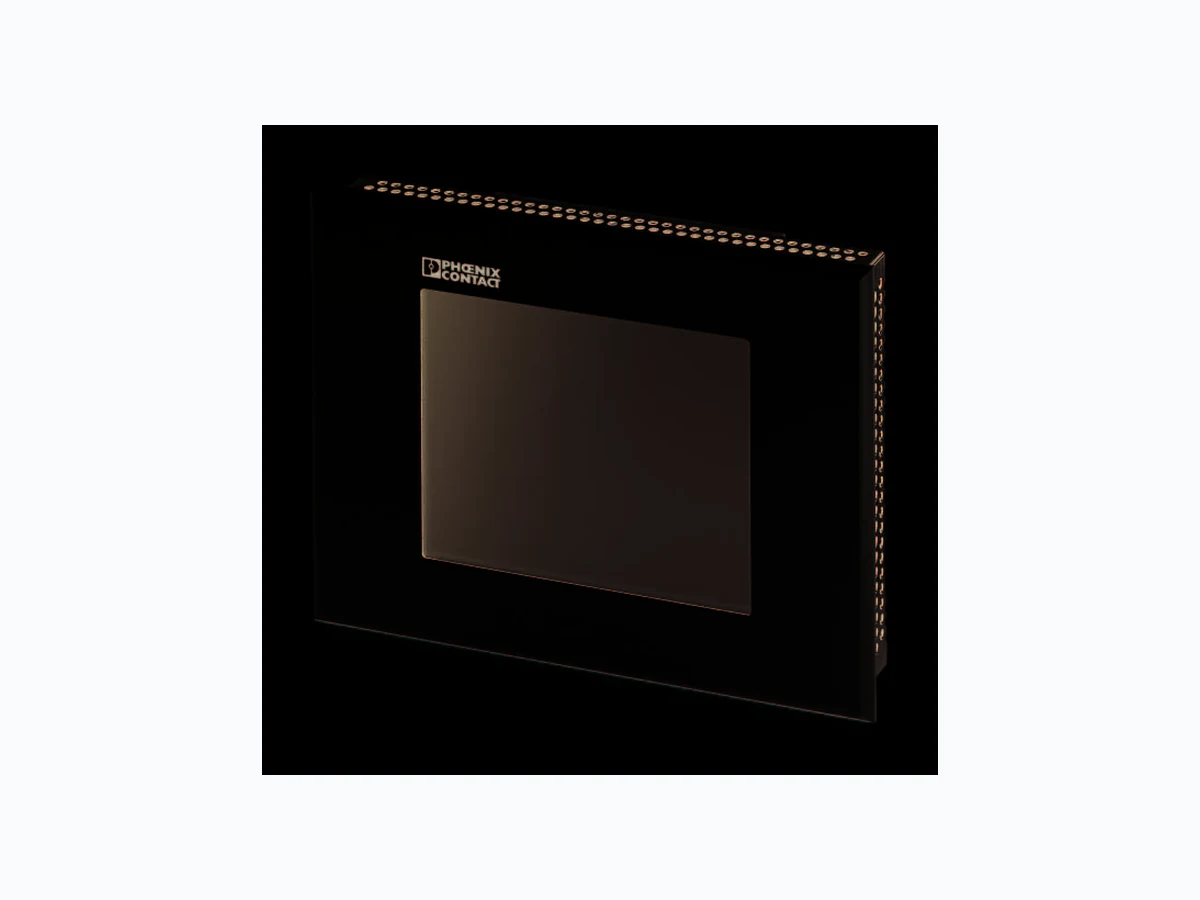
© PHOENIX CONTACT - 06/20087313_en_03 AUTOMATION TP 04M, TP 06M, TP 06S, TP 07T Data sheet 1P r o d u c t d e s c r i p t i o n The touch panels TP 04M, TP 06M, TP 06S and TP 07T are part of a modern, scalable and seamless HMI family. Through the use of a comprehensive range of functions, the touch panels provide an innovative operating concept for complex machine visualizations. The touch panels have full-graphics 4", 6" or 7" displays. Each touch panel is equipped with one Ethernet interface and two USB interfaces. Make sure you always use the latest documentation. It can be downloaded at www.download.phoenixcontact.com This data sheet is valid for the products listed on the following page: Touch panels with STN/FSTN or TFT display
TP 04M, TP 06M, TP 06S, TP 07T 7313_en_03 PHOENIX CONTACT 2 2O r d e r i n g d a t a
3 Technical data
Description Type Order No. Pcs./Pkt. Touch panel with integrated runtime of VISU+ visualization software – With 3.8" FSTN display, 5 gray scales, 320 x 240 pixels TP 04M 2985152 1 – With 5.7" FSTN display, 5 gray scales, 320 x 240 pixels TP 06M 2985165 1 – With 5.7" C-STN display, 125 colors, 320 x 240 pixels TP 06S 2985178 1 – With 7" TFT display, 65535 colors, 800 x 480 pixels TP 07T 2913085 1 Documentation Description Type Order No. Pcs./Pkt. Quick Start Guide UM QS EN OT TP 2888903 1 Electrical data TP 04M TP 06M TP 06S TP 07T Supply voltage 24 V DC (SELV according to DIN EN 61131) Residual ripple 10%, maximum Minimum voltage 18 V Maximum voltage 30 V Current consumption (at 24 V, typical) 0.25 A 0.25 A 0.4 A 0.6 A Current consumption (maximum) 0.35 A 0.35 A 0.5 A 0.8 A C o n n e c t e d l o a d 6W 6W 9 . 6W 1 9 . 2W Fuse Semiconductor fuse, self-resetting Protection against polarity reversal Integrated Ethernet X5 Ethernet 10/100Base-T USB In accordance with the "Universal Serial Bus Specification Rev. 2.0" X9, X10 host Minimum: Maximum: Maximum output current:
1.5 Mbps
12 Mbps
Central processing unit RISC ARM9 Clock frequency 200 MHz Other features Watchdog timer, realtime clock, battery monitoring
TP 04M, TP 06M, TP 06S, TP 07T 7313_en_03 PHOENIX CONTACT 3 Memory Application memory 8 Mbytes Flash 32 Mbytes SDRAM 64 Mbytes Connection method Network Ethernet (10/100 Mbps), RJ45 USB interface 2 x USB 2.0 Climatic data Temperature (operation) 0°C ... 50°C Ambient temperature (storage/transport) -25°C ... +70°C Relative humidity (operation and storage) 10% ... 95%, no condensation Standards and directives Noise immunity DIN EN 61000-4-2 DIN EN 61000-4-3 DIN EN 61000-4-4 DIN EN 61000-4-5 DIN EN 61000-4-6 DIN EN 61000-6-2 Noise emission DIN EN 55011 limit value class A DIN EN 55022 limit value class A DIN EN 6100-6-4 Equipment requirement DIN EN 61131-2 Storage and transport DIN EN 61131-2 Power supply units DIN EN 61131-2 Electromagnetic compatibility 2004/108/EC (including all applicable modifications) Degrees of protection DIN EN 60529 Impact load, shocks DIN EN 60068-2-27 Sinusoidal vibrations DIN EN 60068-2-6 This device is classified as Class A equipment. It may cause radio interference in residential areas. In such cases, the operator may be held liable for taking appropriate measures and for the incurrence of costs. Housing and front plate TP 04M TP 06M TP 06S TP 07T Housing Sheet steel, galvanized Front plate, natural anodized aluminum (H x W x D) 96 x 130 x 5 mm 147 x 203 x 5 mm Grommet Circumferential rubber grommet on the rear Mounting cutout (H x W) 88 x 122 mm 139 x 195 mm Installation depth 33 mm, approximately 54 mm, approximately Degrees of protection Front: IP65; rear: IP20 Total weight 500 g, approximately 1000 g, approximately
TP 04M, TP 06M, TP 06S, TP 07T 7313_en_03 PHOENIX CONTACT 4 4M o u n t i n g The device enables quick and easy mounting from the rear. Ideally, mounting should be in control panels with a plate thickness of approximately 1 mm to 6 mm. 1. Push the device through t he mounting cutout from the front. Figure 1 Mounting with mounting bracket 2. Place the mounting brackets in the appropriate slots (1) and pull the brackets downwards until they snap into place (2). 3. Secure the device using the threaded pins (3). When mounting the touch panel, leave a circumferential gap of at least 30 mm in order to provide sufficient air circulation. If the touch panel is mounted horizontally, please note that additional heat sources may cause a build-up of heat below the touch panel. Provide sufficient heat dissipation! Please observe the permissible temperature range specified in the technical data when operating the device. In order to ensure the specified degree of protection, make sure that the grommet lies flat against the mounting surface and the threaded pins of the mounting brackets are tightened uniformly.
TP 04M, TP 06M, TP 06S, TP 07T 7313_en_03 PHOENIX CONTACT 5
5 Housing dimensions
5.1 TP 04M touch panel
Figure 2 Front and side view of the TP 04M with dimensions
1 Mounting bracket
2 Threaded pin
3 Mounting surface, 1 mm to 6 mm thick
4 Circumferential grommet
5 Front plate
TP 04M, TP 06M, TP 06S, TP 07T 7313_en_03 PHOENIX CONTACT 6
5.2 TP 06M/TP 06S touch panels
Figure 3 Front and side view of the TP 06M/TP 06S with dimensions
TP 04M, TP 06M, TP 06S, TP 07T 7313_en_03 PHOENIX CONTACT 7
5.3 TP 07T touch panel
Figure 4 Front view of the TP 07T with dimensions
TP 04M, TP 06M, TP 06S, TP 07T 7313_en_03 PHOENIX CONTACT 8 6S w i t c h i n g o n The touch panel is equipped with the Windows CE operating system suitable for VISU+ visualization runtime.
6.1 Loading process within the Windows CE
The touch panel allows you to modify the configuration during the startup phase using buttons. The touch panel has two operating modes: – Normal (no button pressed) –S e t u p M a i n (Press For Setup Main Menu button pressed)
6.2 Normal operating mode
The AppStarter.exe program is started from the internal flash memory. Display after startup Please note that the device can only be reached via Ethernet after an Ethernet address has been assigned. Press For Setup Main Menu Admin
TP 04M, TP 06M, TP 06S, TP 07T 7313_en_03 PHOENIX CONTACT 9
6.3 Setup Main operating mode
Press the Press For Setup Main Menu button during the startup phase to start the Setup Main operating mode. Figure 5 Update, Registry Update, Copy USB Stick, Copy to Flash: Copies the data from the USB stick to the internal flash file system. The root, backup or any other directory can be selected. Update, Copy USB Stick, Copy to USB: Copies the contents of the flash file system to the backup directory of the USB stick. Protected system files are excluded. A log file is also copied, which can be used to restore system settings via the "Import Settings" menu item. Update, Copy USB Stick, Import Settings: An automatically generated log file can be used to restore system settings. If the backup directory of the USB stick contains a corresponding log file, the settings can be restored. This is only possible when using identical types of device. Update, Update Image: If the image subdirectory of the memory stick contains an "xxxx.nb0" file, then this file is used to perform the image update. There must only be one "xxxx.nb0" file in this directory. During this procedure flash registry is deactivated. This means that "image" is operated with a new default registry. Up d a t e Touch Scr een & Re g i s t r y Ne t wo r k S e ttin g s OP C Re s E d i t Co p y USB St i c k U pdat e I m age U pdat e B oot l oader Ho m e Sa v e Re gi s t r y Set t i ngs Ho m e Se t up M a i n Up d a t e Touch Scr een & R egi st r y S er ver m yser ver . m yhost . l ocal SNTP Se t t i ngs I nt er val [ m i nut es] OK C ancel C hange D i spl ay M ode A OK C ancel A AA LC D S aver Ex i t S e ttin g s Cu r r e n t M o d e C opy t o Fl ash Co p y t o USB I m por t Se t t i ngs Ho m e Co p y USB St i c k Ch a n g e D i spl ay M ode St a r t C a lib r a tio n SN TP Set t i ngs To transfer data and settings to another device, proceed as follows: 1. "Copy to USB" on current device. 2. "Copy to Flash" on destination device. 3. Select "Backup" directory. The device is restarted. 4. "Import Settings" on destination device. Selection Function Root All files (no directories) of the root directory are copied to the root directory of the flash memory. Backup The contents of the directory are copied to the root directory of the flash memory. XYZ (any) The selected directory (including subdirectories) is copied 1:1 to the flash memory.
TP 04M, TP 06M, TP 06S, TP 07T 7313_en_03 PHOENIX CONTACT 10 Update, Update Bootloader: If the bootloader subdirectory of the memory stick contains an "xxxx.nb0" file, then this file is used to perform the bootloader update. There must only be one "xxxx.nb0" file in this directory. The user is informed after every successful update. Registry, Save Registry Settings: The complete registry is stored. This entry is password-protected. Registry, Change Display Mode: Settings of display orientation. This entry is password-protected. Registry, Start Calibration: Touch calibration is initiated. After calibration the values must be saved via "Save Registry Settings". This entry is password-protected. Registry, SNTP Settings: You can enter the address of an Intranet or Internet time server. Enter the synchronization interval in minutes. This entry is password-protected.
TP 04M, TP 06M, TP 06S, TP 07T 7313_en_03 PHOENIX CONTACT 11 Figure 6 Network Settings Network Settings, Fix Settings, IP Address: Enter an IP address and the subnet mask. After confirming the information, DHCP is automatically deactivated. This entry is password-protected. Network Settings, Fix Settings, Gateway: Define the default gateway. After confirming the information, DHCP is automatically deactivated. This entry is password-protected. Network Settings, Fix Settings, DNS: Here you can enter a primary and a secondary DNS server address. After confirming the information, DHCP is automatically deactivated. This entry is password-protected. Network Settings, Fix Settings, WINS: Here you can enter primary and secondary WINS addresses. After confirming the information, DHCP is automatically deactivated. This entry is password-protected. Network Settings, Current IP: Displays the current IP address, subnet mask, device name, DHCP status, and gateway. Network Settings, DHCP: This menu item is used to activate the DHCP service. The settings must be saved when exiting the menu or via "Save Registry Settings". This entry is password-protected. Network Settings, Device Name: Specify a device name with a maximum of 15 characters. The device can be accessed by the device name instead of the IP address by using an FTP connection. This entry is password-protected. T C P /IP In f o F i x S e ttin g s Ho m e N e t w or k Se t t i ngs DHCP De v i c e Na m e IP A d d r e s s 000. 000. 000. 000 000. 000. 000. 000 IP A d d r e s s Subnet M as k OK Ca n c e l M A C : 0 -0 -0 0 -0 -0 -0 0 I P : 192. 168. 100. 82 M ask: 255. 255. 255. 0 De v i c e Na m e : M y Na m e DHCP e n a b l e d G at e: 0. 0. 0. 0 T C P -IP In f o E n t er D evi ce N am e De v i c e Na m e My N a me OK Ca n c e l C h a n g e D e fa u lt G a te w a y 000. 000. 000. 000 Ga t e wa y OK Ca n c e l Pr i m a r y D N S 000. 000. 000. 000 000. 000. 000. 000 DNS S e c o n d a r y DNS OK Ca n c e l WI N S OK Ca n c e l Pr i m a r y W I N S 000. 000. 000. 000 000. 000. 000. 000 Se conda r y W I N S DHCP e n a b l e d S a v e re g i s t ry a n d re s ta rt d e v i c e to w o rk w i th n e w p a ra m e t e rs DHCP Up d a t e T ouc h S cr een & Re g i s t r y Ne t wo r k Se t t i ngs OP C Re s Ed i t Set up M a i n Ex i t S e ttin g s FTP Se t t i ngs FTP Set t i ngs A dd ne w us er Ho m e L i st al l u ser s De l e t e a u s e r A dd ne w us er / D e l et e a us er Ent e r U s e r My N a me OK Ca n c e l Ent e r Pa s s w or d ** C onf i r m Pas sw or d OK Ca n c e l Pa s s w or d C onf i r m ** IP A d d r e s s Ga t e wa y Ho m e F i x S e ttin g s DNS WI N S All addresses must be entered in the format "xxx.xxx.xxx.xxx". Numbers less than 100 must be filled with leading zeros.
TP 04M, TP 06M, TP 06S, TP 07T 7313_en_03 PHOENIX CONTACT 13 7D i s p l a y Depending on its design, the touch panel is equipped with different displays. Touch screen The touch panel has a resistive 4-wire touch screen, which is used for its operation. 8I n t e r f a c e s Several interfaces are located on the bottom of the touch panel. Figure 9 Interfaces of the TP 04M, TP 06M, TP 06S and TP 07T touch panels
1 Female connector X5 (Ethernet)
2 Female connector X9, X10 (USB host - type A)
3 Male connector X1 (supply voltage)
DANGER: Poisoning If the display is damaged, avoid direct contact with skin, and do not ingest any liquids or inhale any gases. DANGER: Chemical burns If the display is damaged, avoid direct contact with skin, and do not ingest any liquids or inhale any gases. NOTE: Damage Pointed or sharp objects, such as pins or fingernails, may cause irreparable damage to the touch screen. Therefore, only use your fingertips or the tools specified in the technical data for operating the touch screen.
TP 04M, TP 06M, TP 06S, TP 07T 7313_en_03 PHOENIX CONTACT 14 9I n t e r f a c e a s s i g n m e n t
9.1 Supply voltage
9.2 USB
Figure 11 Two USB host interfaces
9.3 Ethernet
Figure 12 Ethernet interface DANGER: Hazardous contact voltage In electrical systems, hazardous voltages may occur posing a danger to humans. There is a risk of electric shock when touching live parts. Work must only be carried out by qualified personnel familiar with the required safety measures. NOTE: Provide a separate cable for protective grounding at the threaded bolt. The cable must have a minimum cross section of 1.5 mm² and must be as short as possible. Pin Designation Function
1 Low-noise ground
3 +24 V DC 24 V DC supply voltage Use a fine strand cable with a minimum cross section of 0.75 mm² and a maximum cross section of 2.5 mm² for the supply voltage. Pin Designation 1V C C ( + 5 V D C ) 2D a t a – 3D a t a + 4G N D Use a fine strand cable with a minimum cross section of 0.75 mm² and a maximum cross section of 2.5 mm² for the supply voltage. For the specification of a suitable cable, please refer to the "Universal Serial Bus Specification Rev. 2.0". The maximum cable length for the cable used is 2.5 m. Pin Designation Function
1 Tx+ Transmit data, positive polarity
2 Tx- Transmit data, negative polarity
3 Rx+ Receive data, positive polarity
4n . c . N o t c o n n e c t e d 5n . c . N o t c o n n e c t e d
6 Rx- Receive data, negative polarity
7n . c . N o t c o n n e c t e d 8n . c . N o t c o n n e c t e d Use a category 5 (CAT 5) twisted pair cable. The maximum cable length is 100 m. For additional information, please refer to the IEEE 802.3 standard.
TP 04M, TP 06M, TP 06S, TP 07T 7313_en_03 PHOENIX CONTACT 15
10 Diagnostic LEDs
Ethernet diagnostic LEDs are located at the Ethernet interface of the touch panel. Figure 13 Arrangement of th e Ethernet diagnostic LEDs No. Designa- tion Color State Function
1 XMT Green On Link active
2 RCV Yellow On Full duplex mode
Flashing Collision detected
TP 04M, TP 06M, TP 06S, TP 07T 7313_en_03 PHOENIX CONTACT 16
11 VISU+
VISU+ is an industrial visualization software which can be used on all hardware platforms under Windows CE and XP operating systems. The TPxx series uses Windows CE as its operating system. The visualization functionality is limited under Windows CE. In addition, performance is reduced by the choice of hardware. Please observe the following restrictions:
- Lower speed
- Less memory space
- Limited trending
- Limited data logging
- Limited alarming
- Processing of data amount (hardware-dependent)
- Graphical elements of the VISU+ library (e.g., tank views with traverses) cannot be completely displayed. Recommendations to improve performance 1. Reducing the page switch over time (page clearing) To ensure a rapid switchover time between the pages to be visualized, the "Not destroyable" option should be set in the project file. Using this setting the page remains in RAM. The RAM assignment directly depends on both the displayed page size and the total number of pages. A RAM area of approximately 12 ... 13 MB is available for the saving of pages. A total of approximately 40 ... 50 pages can be saved in this area, depending on the page memory requirements. For the touch panel templates, the "Not destroyable" option is set by default. When starting the runtime environment, only pages with the "Not destroyable" option activated will be preloaded into RAM provided that the option "Preload process images" has been selected for the project. In this case, the starting time will be prolonged once by the page load times. 2. Using IL (instruction list) Assigning an IL script to a page requires a RAM area of approximately 800 kB. Due to the limited memory capacity, it is only possible to preload a maximum of 10 pages. In addition, the script runs in the background if the "Not destroyable" option is selected. The scripts of all pages loaded into RAM are processed in parallel. Even the scripts stored in background are processed. This may lead to undesired interactions. For the global use of IL scripts within a project, the engine should be stored on the overview page. 3. Using VBA (Visual Basic for Applications) Assigning VBA to a page requires a RAM area of approximately 800 kB. Due to the limited memory capacity, it is only possible to preload a maximum of 10 pages. In addition, VBA runs in the background if the "Not destroyable" option is selected. For the global use of data within a project, the engine should be stored on the overview page. VISU+ functions I/O variables in bytes (tags) 4096 Graphical interface and objects Limited Alarms Limited Short-cut and menu editor Yes Virtual pad (for touch screen) Yes Historical log for events Limited Dynamic language management Yes General logic Yes VBA multithreading Yes Trending Limited Recipe data logger Limited Reporting Not available Networking Yes Statistic alarms Not available SMS/voice/fax/e-mails Not available Modem services Driver tapi Not available Charts Yes OPC client Yes Runtime user management Not available (ARM9) Yes (XScale) To avoid confusion in the IL scripts, unused pages should always be "cleared" if they contain IL scripts possibly affecting other pages.
TP 04M, TP 06M, TP 06S, TP 07T 7313_en_03 17PHOENIX CONTACT GmbH & Co. KG • 32823 Blomberg • Germany • Phone: +49-(0) 5235-3-00 PHOENIX CONTACT • P.O.Box 4100 • Harrisburg • PA 17111-0100 • USA • Phone: +717-944-1300 www.phoenixcontact.com 4. Heap management Heap management is used for memory management using the VISU+ runtime environment. The request and release of memory areas is both dynamic and unpredictable. If there is no automatic garbage collection, the fragmentation of the total available memory may lead to new memory requirements not being able to be met even though the sum of available free memory would, theoretically, still be high enough. Heap management can be activated to ensure a more efficient memory management and thus reduced access times. For activating the heap management, proceed as follows: 1. Start the project file on the PC. 2. Open all project pages and options of the project file. 3. Stop the project on the PC. 4. Activate heap management by selecting the Set value of last start option. The values automatically determined by the heap management are set.
12 General user notes
Figure 14 Example, error message
13 Portrait (vertical) mode on the
Depending on the application to be visualized, it may be necessary to select the portrait mode for representation purposes. By default, all touch panels support a 90° rotation of the visualization. Figure 15 Example, portrait mode To use the portrait mode, proceed as follows: 1. Set the portrait mode on the touch panel. 2. Set the VISU+ visualization software to portrait mode.
- In the root path of the project, the "Projectname.constraints" configuration file is automatically created and saved during initial project creation. This file contains information, such as the maximum limits of the display device type.
- Close the project file if it is open.
- Open the "Projectname.constraints" configuration file for processing using an editor (e.g., NotePad).
- Swap the X/Y limit value entries with one another: – MaxScreenSize CX, e.g., 800 (pixel) – MaxScreenSize CY, e.g., 600 (pixel)
- Open the VISU+ program user interface and load the required project file.
- Modify the required X/Y limit values in the program user interface. Error message Remedy Flash full Delete any data in the flash memory that is no longer needed. (e.g., via FTP access) To swap out memory data, use a USB memory extension, if necessary.